Finding your battery drain!

Posted by Unknown Selasa, 13 Maret 2012 0 komentar
As I mentioned in my first post, there are a lot of obvious causes of poor battery life. Unfortunately, there are many other causes of battery drain that are not so obvious. In this post I'll talk about finding those problems and addressing them.

1. Battery Stats are your friends and the graphs provided in Ice Cream Sandwich are quite useful once you know how to use them.

Main Battery Screen - This screen shows you the estimated charge remaining (80% here), the time on battery (5h 34m 34s), and then breaks down the biggest users of the battery by percentage. Typically you will find Screen and Android OS at the top of the list.

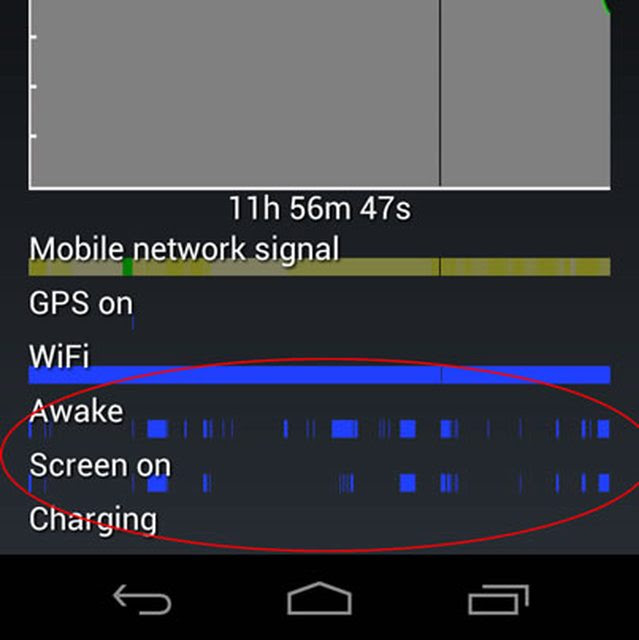
Battery Graph - If you click on the picture of the graph itself, it will bring up another screen that offers you a more detailed look at the phone's discharging process. Mobile Network Signal gives you an idea of the signal strength throughout the day thus far. Green is strong, then bright yellow, dim yellow/grey and red. You may notice on your phone that the battery discharges more quickly with a poor signal as the phone tries to boost power to maintain the connection. The next two lines I am going to focus on are really critical to battery life. "Awake" and "Screen on". Awake refers to times when the phone's CPU is operating (ie awake) and Screen on refers to times when the screen is turned on (obviously). What is really important here is to watch out for periods of time where the phone is Awake but the Screen is NOT on. This indicates some background process running that is draining battery while you aren't using the phone actively. This is pretty normal, so long as its not excessive. If you are seeing lots of awake time that doesn't correspond to Screen on time you may have an issue. Streaming music and receiving emails/texts etc are perfectly normal background processes. In my next post I will focus on using some free apps to help identify what processes/apps are hogging your battery in the background.

Here's a closeup of the Awake and Screen On lines. You can see how almost all the awake time lines up with times the screen is on. This is what you want.

Android OS - Android OS simply tells you how long the CPU has been running (in total) since you unplugged and how much time it has been "kept awake". As you may notice, Keep awake time tends to exceed total - yes, it seems an odd way to report usage but that's what we have. Its perfectly 'normal', at least according to what many users are seeing, to have several hours of Keep Awake time. I regularly see 2-3 hours after 16 hours unplugged. If you are seeing WAY more than that, you may have an issue. Again, we'll focus on that in the next post.

Hope this has been helpful so far.


- DnT

Baca Selengkapnya ....

My Battery life

Posted by Unknown 0 komentar
As I mentioned in my first post today, my battery life ranges anywhere from 20-30 hours. For most people that probably sounds great, and quite frankly I think it is. I also think that for many users, those numbers are achievable. However, there are certainly going to be power users and others who will never get close, and for them, having a charger or second battery handy is going to be necessary. If you don't have access to WiFi during the day, do a lot of streaming, or keep your phone's screen on for 5 hours a day, you are probably going to fall into that category.


First, lets talk about 'typical usage'. For me, a day starts with my phone coming off the charger at about 7am. 


Usually its showing about 98%. That is not unusual and nothing is wrong with your phone if it never seems to reach 100%. These devices are smart and designed to prolong the life of the battery by not overcharging. Once the phone hits 100% it actually stops charging and will slowly drain to 94% before trickling back and forth at around 92-96%. Chances are, when you pick up your phone in the morning its not going to read 100%. And even if it does, its not really at 100%! Also, if you've ever noticed how the first 10% seems to drop off really quickly, you might want to take a look at this article which explains why, or tune in to Dianne Hackborn's Google+ feed where she notes that 

Dianne HackbornJan 13, 2012


Once you get above 90%, I would stop worrying about it. I think most if not all devices need to go through charge/discharge cycles while fully charged to keep the battery life good, so when it is "charged" it will actually be ramping up and down to do that. How this is shown to the user varies across manufacturers, and there is really no clearly right solution -- if you show them the actual changes in level they start complaining and getting concerned about their battery not being at 100%, so it is good to just show it at 100% at this point but then you are giving a little white lie about the actual level.


My day usually lasts about 16 hours before I plug back in.  For me, 85% of the day I spend connected to WiFi with only about 2 hours on 4G. This is really the key to my long battery life. The more time you spend on 4G or even 3G, the faster your battery drains. As for my normal usage, I would say that I average about 2 - 2 1/2 hours of screen on time, <20 minutes of talk time. I rarely stream videos and occasionally listen to a couple of hours of Sirius radio (screen off).  I think its fair to describe my usage as 'moderate' or fairly standard. 


So, that's a typical day for me, but I thought I would also include some stats on my "best day" and "worst day".


Best Day Ever! - I ran over 29 hours on the stock battery, stock ROM, stock kernel. 29 1/2 hours on battery. about 27hrs on wifi, 2hrs on 3g/4g. 2hrs 45min screen on time. about 5 minutes talk time. No streaming. Brightness at 10% except brief periods in direct sunlight.

Worst Day ever! - Only got 14.5 hours. 2:45 screen on. 2:00 streaming Sirius via 4G. 0:45 of talk time. I really hit on all most of the big drains that day!

So that's it for my day, in my next post I'll focus on finding battery drains and solving battery issues.


- DnT

Baca Selengkapnya ....

Samsung Galaxy Nexus Battery Life

Posted by Unknown 0 komentar
Read any forum about the Samsung Galaxy Nexus and you are bound to find 85 trillion posts bemoaning the lackluster battery life of Google's latest "Flagship Device". You will also find 73 Billion responses recommending that the original poster "Root and ROM" their phone for optimal battery life. Unfortunately, that doesn't work for a lot of people as they fear the unknown of Root and ROMS.


I'm here to say that its not necessary.


Sure, my phone is unlocked and rooted, but I am running the stock Android 4.0.2 ROM and kernel. I'm not using any special task managers, battery controllers, power savers, etc.  Its simply a matter of understanding what uses the most juice and making the most out of what you've got. I typically have my phone off the charger for about 16 hours a day and when I plug it back in I usually have about 30% left. On my best day I've gotten over 29 hours.


So let's look at battery hogs...


1. The big beautiful screen - Its the biggest phone screen on the market (unless you count the Galaxy Note as a phone, I think its more of a Tablone.) Its HD and packed with pixels. It uses a lot of power when its turned on. The best thing you can do for battery life is reduce the brightness as much as possible. I keep mine at 10% unless I am outside or in a brightly lit room. Its plenty bright for me to read 90% of the time. I use a power control widget, widgetsoid specifically, on my home screen to give me quick access to adjust the brightness. I find Auto Brightness unreliable and I think it tends to set brightness higher than needed.


2. 4G data - That's right, all those G's come at a price. With the current 1st generation 4G chips comes some inefficiency. While 4G should technically be faster and more efficient than 3G, only the former is true. Until we start seeing some of the newer 'Hybrid' 3G/4G chips, we'll have to deal with the inefficiency of running multiple chips.


So, what to do?


USE WIFI. As much as possible. In terms of battery usage WiFi < 3G < 4G. So turn it on and use it whenever you can. If you are in a weak 4G area or have no 4G where you are, turn it off. (settings > more > mobile networks > network mode > CDMA). If you go in and out of 4G areas and want quick access to these settings, your best bet is a widget called 4G Toggle which can be downloaded from the Marke....sorry, the Google Play Market.


3. Talk Time - Yup, in the world of email, Facebook, texts and IM's people tend to even forget that their phone can make calls. And in fact, voice calls require quite a bit of power. I'm not trying to discourage actually speaking to other human beings, rather just letting you know that it does drain your battery fairly quickly when you do.


4. Sync - WHAT? What's the point of a smartphone if it doesn't sync? That's true, just be smart about what you choose to sync. Every sync wakes up the CPU and uses your data connection and thus some power. The less you sync the better your battery life. So let's talk about what you NEED to sync. Personally, I sync Gmail, Calendar, Contacts, Browser and 1 pop email account every 30 minutes. No Twitter, no Facebook and no Google+. Firstly, Google+ is a known sync hog and would sync constantly causing a noticeable battery drain. Second of all, do you really NEED to sync things like Twitter, Facebook and Google+? Do you NEED updates constantly? Not really. When you open each of their apps within seconds you've got all your feeds updated. Get your social media updates as needed not as posted and you'll save yourself some juice. Oh, and I'm pretty sure syncing your photos tends to be a drain too but most people probably use that feature and can live with it, but I thought I'd point it out anyway. Some people report problems with Google Talk, but I've had it on and running since December with no impact on battery life.


5. Streaming - It should be obvious, but in case it wasn't, streaming uses data. Data uses power. Therefore streaming drains your battery. If you listen to Sirius or Pandora, or if you watch a lot of YouTube or Netflix videos, expect to see your battery drain quickly. Especially for videos since you've got the double whammy of data and screen on.


6. GPS - While receiving GPS signals alone doesn't take much power, note that Google Maps/Nav has to be connected to data to work. So it will maintain a constant connection to identify your location and track you on the map....even if your screen is off. If you could cache your route and the maps offline and run without data it'd be fine, but until Google implements that you are SOL. GPS Navigation is a HUGE power drain especially if you have the screen on. Many users report that their car charger cannot even maintain a steady charge while using GPS. This is not unique to the Galaxy Nexus but is a 'feature' of the way Google Maps/Navigation works. This won't change so long as Google Nav works online.

So, now that you know what uses up all your precious power, you can start getting the most out of your phone. In my next post I'll talk more about my battery life and later, tips on solving any battery drains you may have.

Good luck!


- DnT

Baca Selengkapnya ....

Tilt-Shift Faking

Posted by Unknown Selasa, 14 Februari 2012 0 komentar
This is my attempt at faking tilt-shift. The picture is a shot I took in Croatia several years ago.

Tilt-Shifted

Original


Baca Selengkapnya ....

Wallbase HD Wallpapers for Android

Posted by Unknown Senin, 17 Oktober 2011 0 komentar


ABOUT

This is an unofficial Android client for the amazing wallpaper website Wallbase.

Features include:

✓ Browse over a million HD wallpapers
✓ Set and save wallpapers
✓ Browse popular wallpapers
✓ Browse random wallpapers
✓ Browse popular tags
✓ Search by keyword/tags/color
✓ Filter by rating (Safe for Work and Sketchy)
✓ Filter by resolution and 4chan image board

DOWNLOAD

Download here, or scan the QR code above.

ABOUT WALLBASE WEBSITE

Wallbase is a website which scrapes wallpapers from 4chan and then allows users to tag/moderate the wallpapers. If you find a wallpaper which is tagged/classified incorrectly then please visit the wallpaper on the Wallbase website directly to modify it. Please also visit the Wallbase website for handling copyright related issues.

WARNING

This application is of high maturity. Do not use it if you think you will be offended!

SCREENSHOTS


Baca Selengkapnya ....

Flickr App

Posted by Unknown Rabu, 28 September 2011 0 komentar
I started developing a Flickr app until I found out today Yahoo just released one. Still not sure if I will bother finishing it but here is a screenshot of what I have done so far...


Welcome Screen


Baca Selengkapnya ....

Icons

Posted by Unknown 0 komentar
I started messing around with app icons a bit...


Baca Selengkapnya ....
Trik SEO Terbaru support Online Shop Baju Wanita - Original design by Bamz | Copyright of android gingerbread.